How to User Filters Effectively?
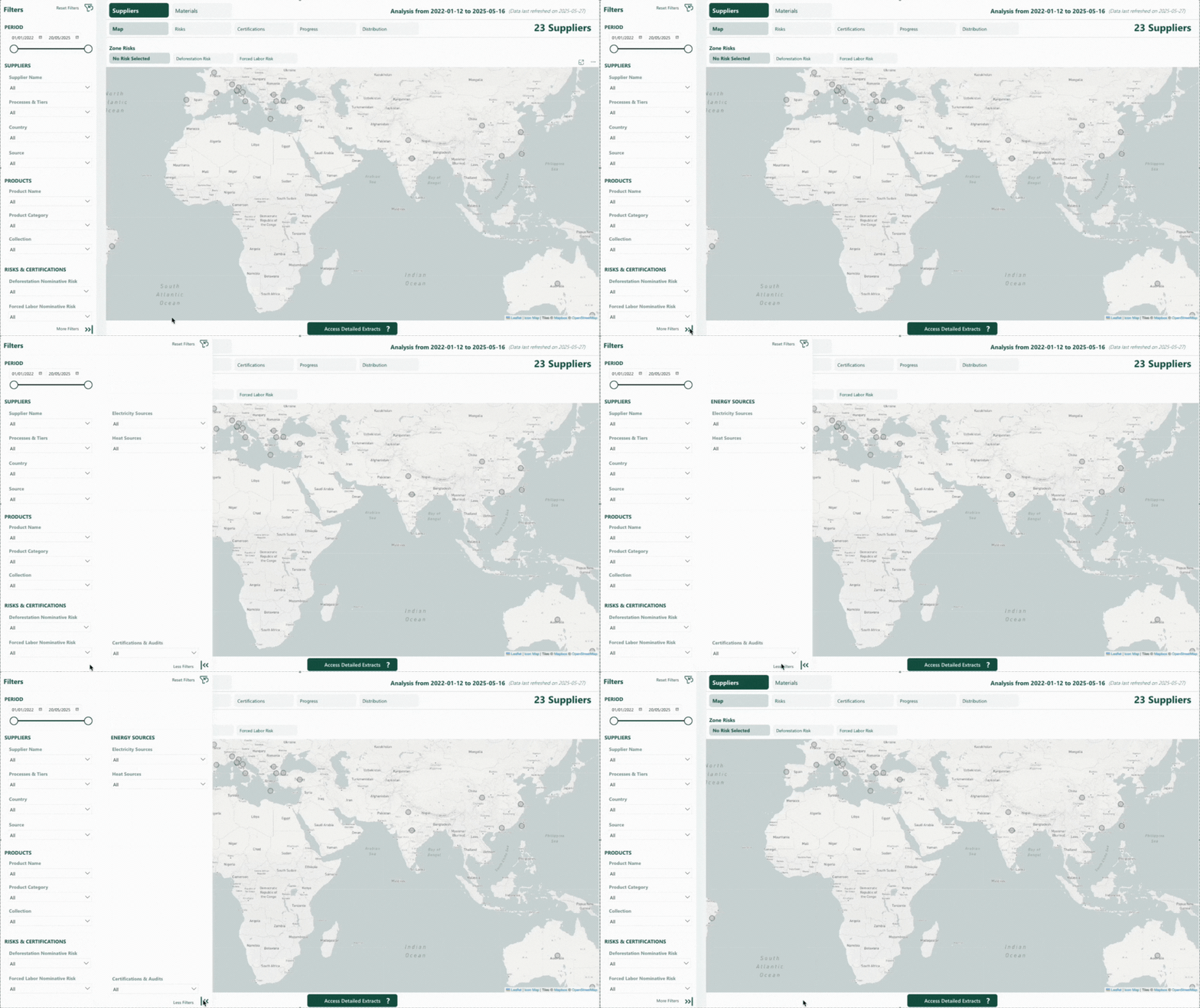
Access Additional Filters
In the "Suppliers" reports, you can click the "More Filters" button to access additional filtering options. This includes details such as supplier certifications and energy sources, allowing for a deeper analysis.
Track Active Filters
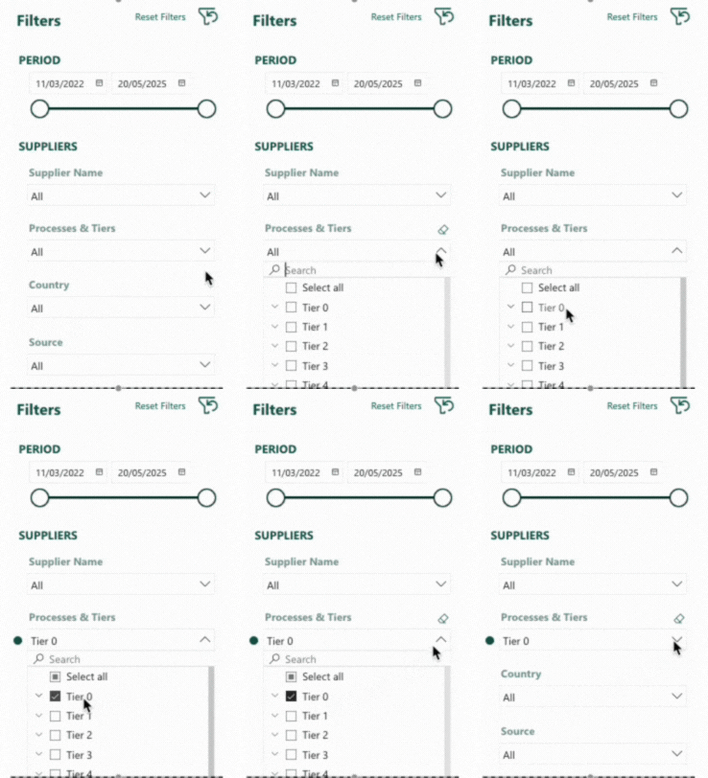
When you apply any filter from the side panel, a green dot appears next to the corresponding category. This visual cue helps you quickly identify which filters are currently active, especially useful when several filters are applied at once.
Reset All Filters
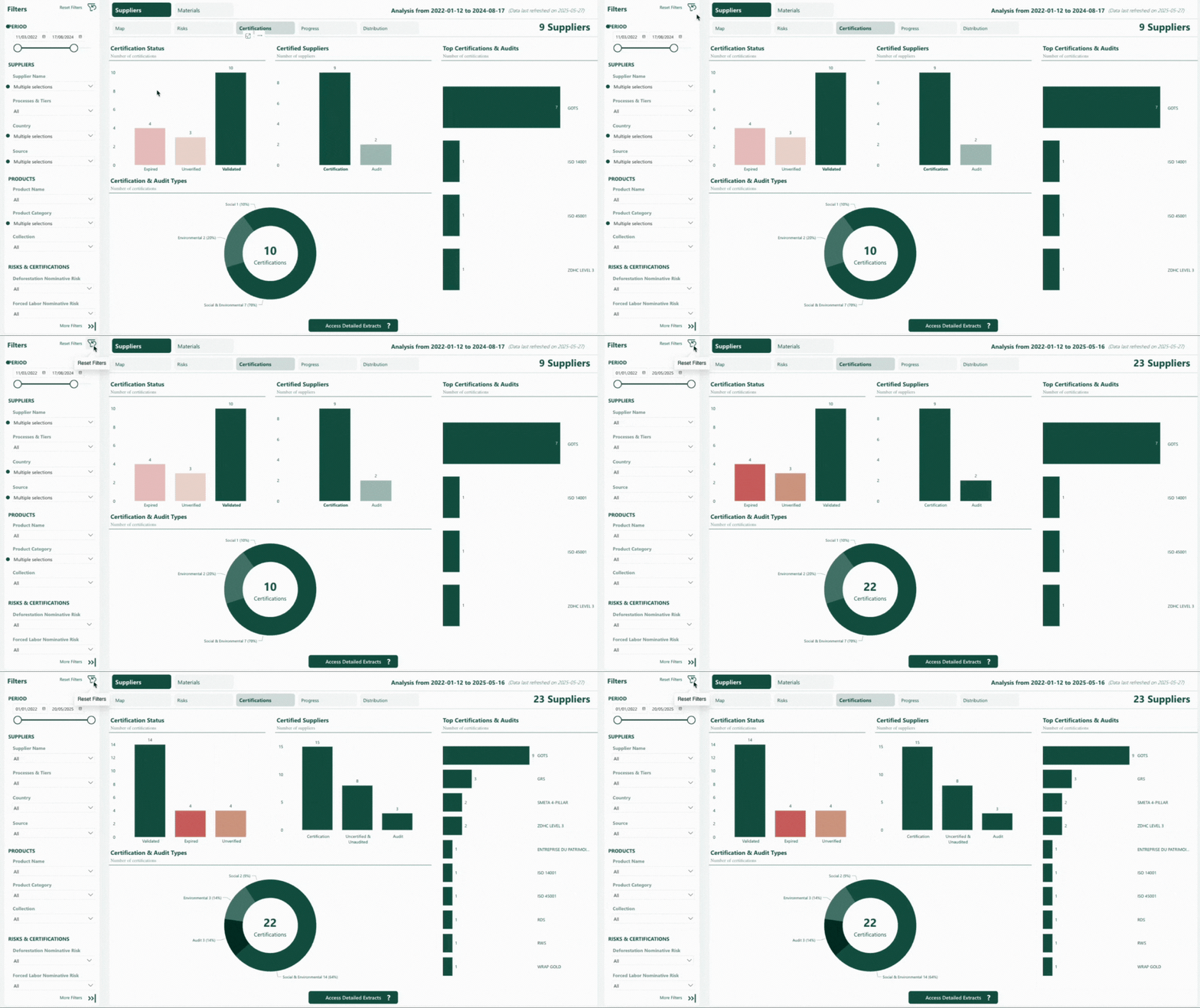
At the top of the filter panel, the "Reset Filters" button allows you to clear all applied filters and start from scratch. This includes filters selected from the side panel as well as those applied by interacting directly with the graphs.
How to Extract Data?
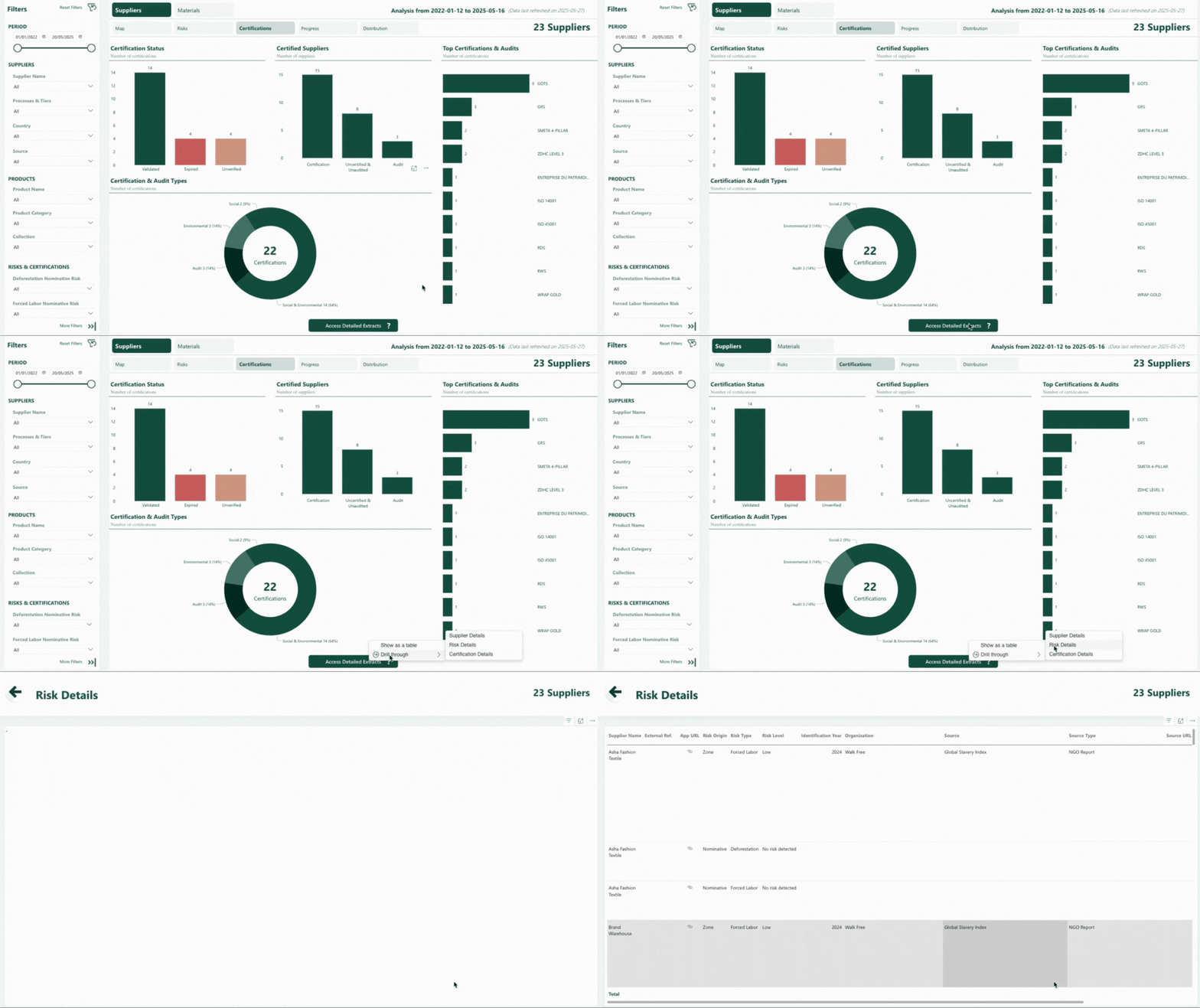
Access Detailed Extracts
At the bottom of each report, there is a button called "Right-Click for Extracts". To use it, right-click on the button to open the “Drill through” menu. Then, hover over the menu and select the extract you wish to view.
The extract will display data based on all the filters currently applied to the report.
Download the Extracts
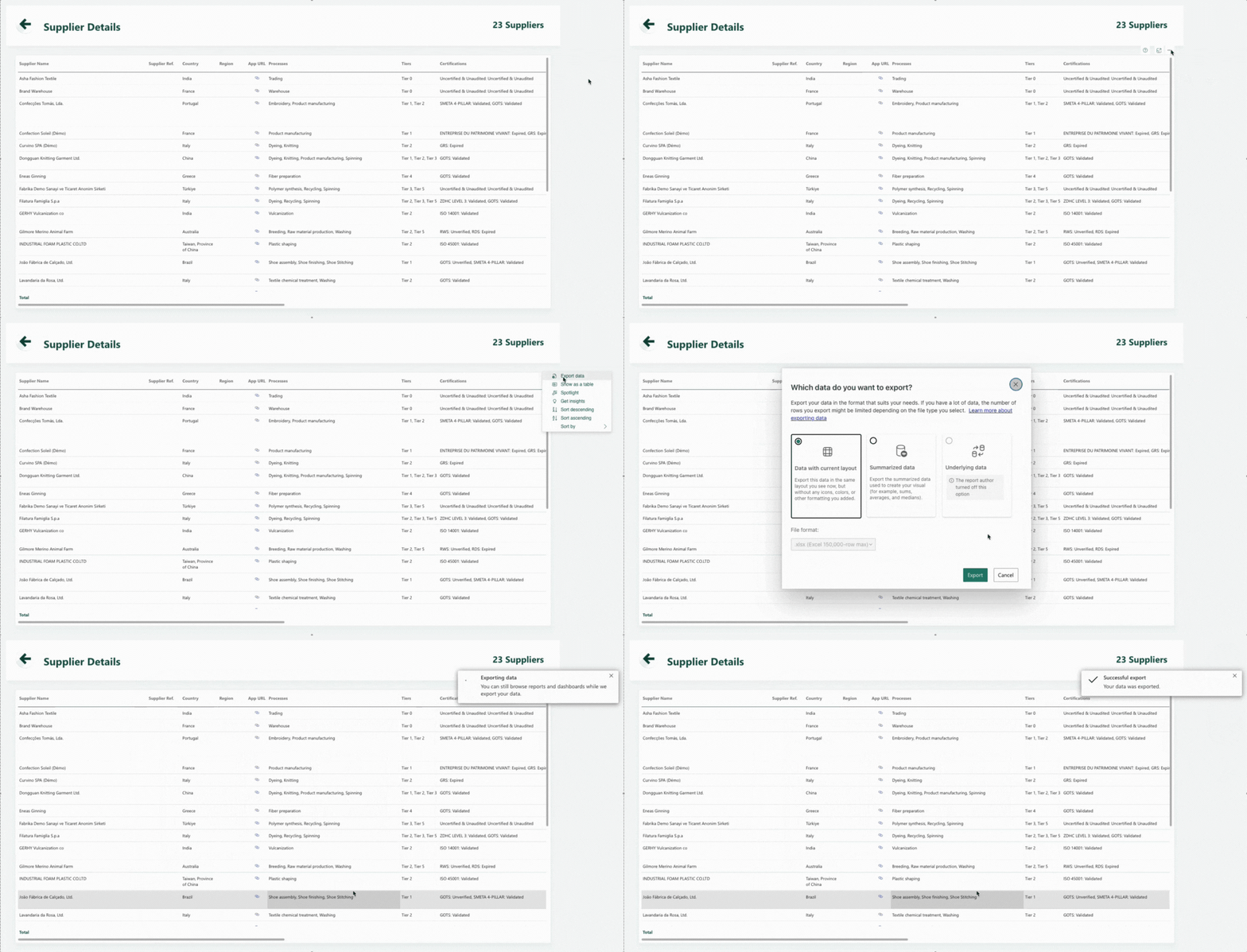
Once you’re on an extract, hover your cursor over the visual. A few icons will appear, click the “...” (More options) icon, then select “Export data”. A modal window will open where you can choose your preferred format (Excel or CSV). Click “Export” to download the file.
How to Select Multiple Values on Graphs?
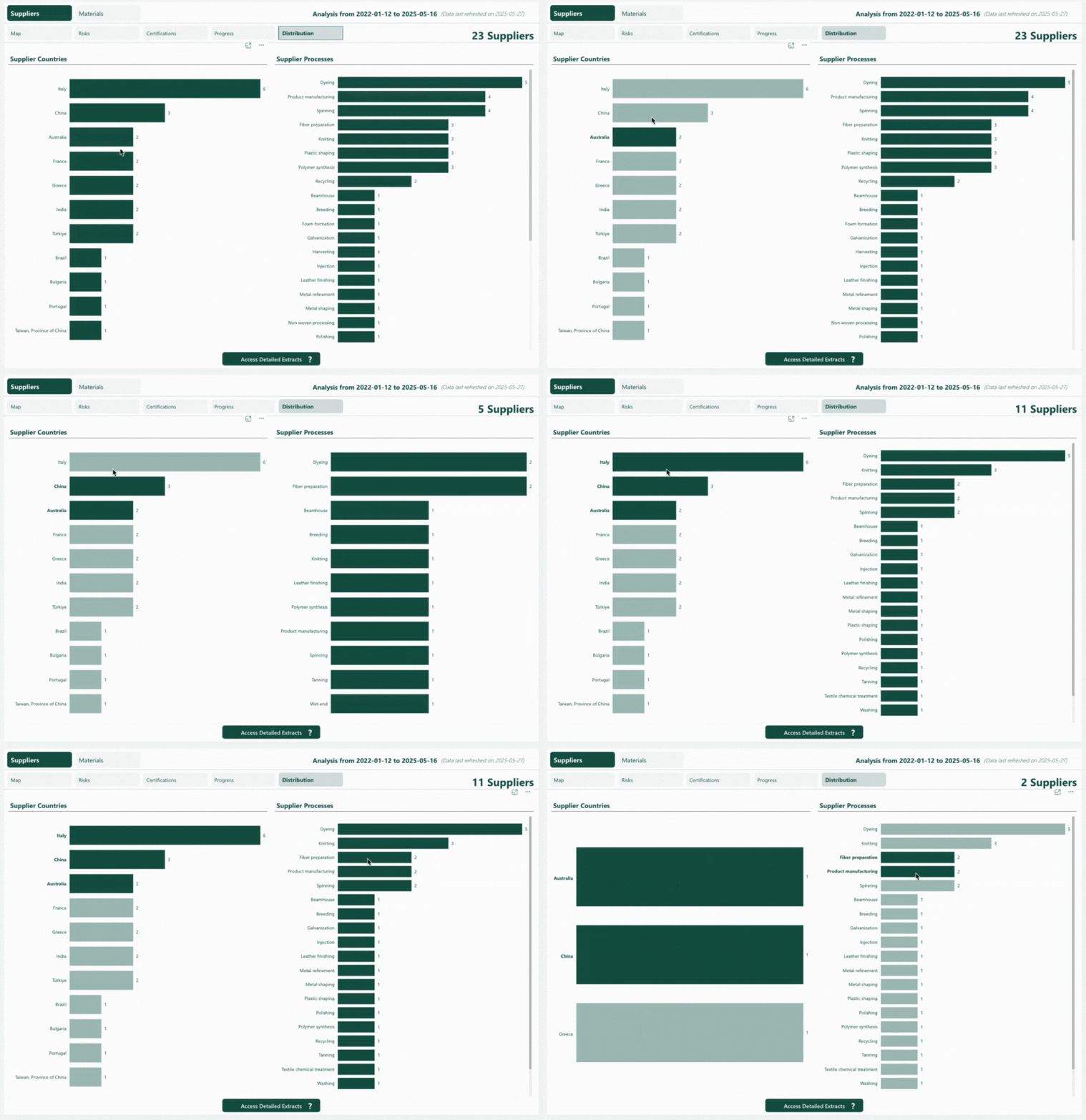
On interactive graphs, you can select multiple values at once to filter your reports more precisely.
To do this, hold down Cmd (on Mac) or Ctrl (on Windows) and click on the different data points or bars you want to include.