Introduction
With real-time life cycle assessments, dynamic scenario analysis, and actionable insights, the Ecodesign module helps align creative decisions with CSR goals while fostering collaboration across teams.
This innovative module drives eco-conscious innovation and enables brands to make data-driven choices that balance creativity, quality, and environmental responsibility.
Functional scope
- This module is available exclusively to brands with an active subscription, and accessible to users within these brands holding an active license.
- Simulations can be performed on products already analyzed with Fairly Made's LCA offer, ensuring reliable and validated data.
- The module focuses on textile components, enabling users to modify parameters related to the most impactful transformation steps and raw materials. For non-textile components, specific steps such as weaving do not apply. These components follow a unique lifecycle process and are therefore pre-configured for optimal accuracy.
Key Features
Here’s a brief overview of the features offered by the Ecodesign module:
- Distinct modes: Dedicated interfaces for studies analysis consultation and creation of simulations.
- Simulation Features:
- Create simulations based on existing products.
- Save and revisit simulations anytime.
- Customizable Steps: Modify key processes, including manufacturing, weaving/knitting, printing/dyeing, and raw material composition.
- Comprehensive LCA Metrics: Select any of the 19 impacts (e.g., climate change, freshwater eutrophication, fossil energy use) you want to focus on.
- Visual Insights: View impacts breakdown in detailed graphs.
- Instant Results: Access real-time outcomes for simulations.
Step-by-Step Guide to Ecodesign
Identify products to prioritize
-
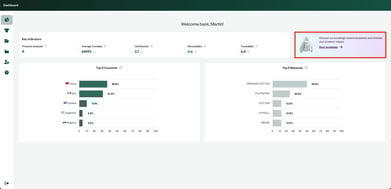
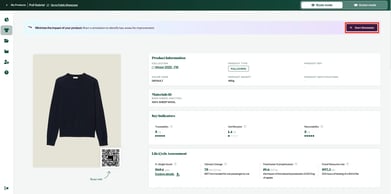
From the "Dashboard" page, click on “Start ecodesign” to view your most impactful products.
-
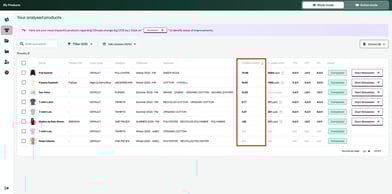
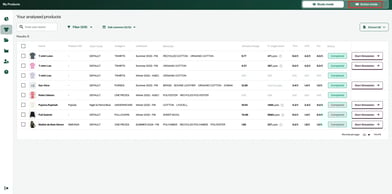
You will be redirected to a list of all your products, automatically ranked by climate change impact, making it easier to prioritize which ones to address first.
Initiate a Simulation
-
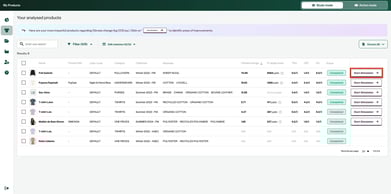
After selecting a product to optimize, click "Start Simulation" to open the simulation tool.
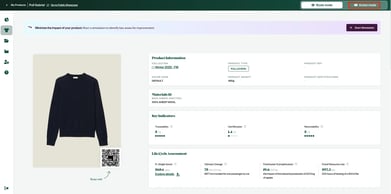
Alternatively, you can start a simulation directly from the page of the specific product you want to work on.
-
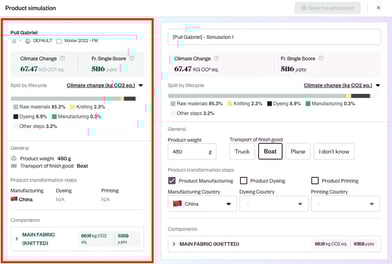
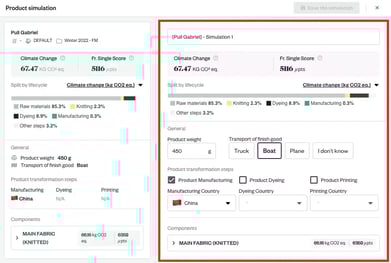
The simulation tool is divided into two sections:
- Left side: displays detailed traceability data and environmental impacts of the selected product.
- Right side: Shows your simulation, where you can update parameters to reduce impacts. By default, the simulation starts with the same values as the selected product
Adjust Simulation Parameters
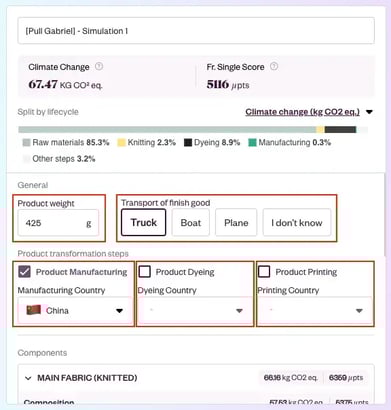
You can update parameters of your simulation at two levels:
-
Product level:
-
Update the product weight and type of transportation for the finished product.
-
Change the location of the manufacturing step.
-
Add or modify a dyeing or printing step for the finished product and specify its country.
-
-
Component level:
-
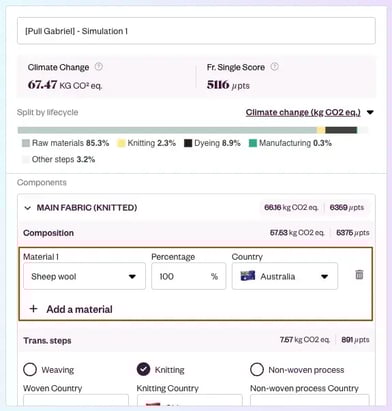
Modify the composition by updating, adding, or deleting raw materials and update the production country of raw materials.
-
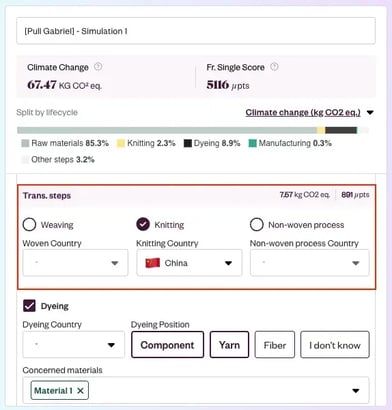
Adjust weaving or knitting processes and change their locations.
-
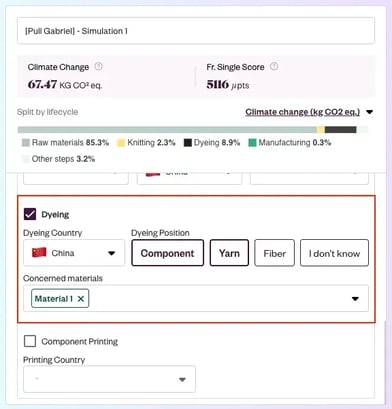
Modify dyeing steps by specifying the location and choosing whether dyeing is performed on fiber, yarn, and/or component. If selecting fiber or yarn dyeing, specify the relevant materials in "Concerned Materials".
-
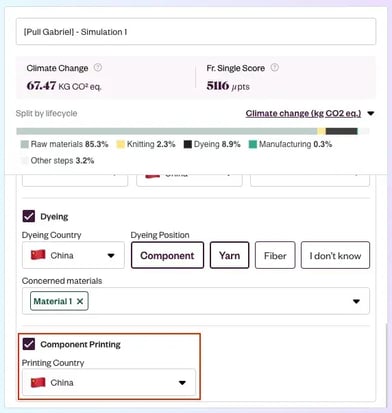
Update component printing parameters as needed.
-
Analyze Environmental Impacts
- When you modify any simulation parameters, the environmental impacts are automatically recalculated in real time.
- A comparison of these impacts with those of the original product used for the simulation is also displayed for easy reference.
Save Your Simulation
- After completing your simulation scenario, make sure to save it to easily access it later for review or further updates.
Access and Manage Your Saved Simulations
There is two ways to access the scenarios you have created:
-
From the My Products page: switch to "Action Mode" to see all the simulations you have created across all products.
-
From a specific product page: switch to "Action Mode" to view all the simulations associated with that particular product.