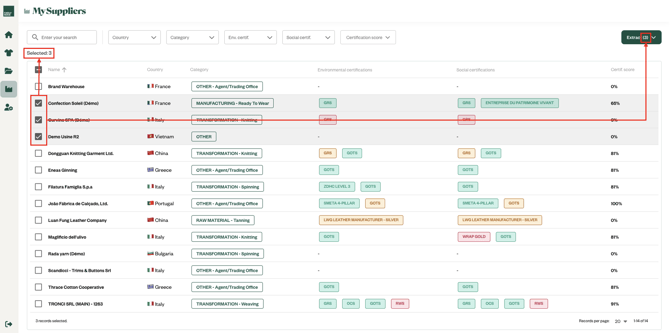
The platform allows you to download detailed extracts of your products and suppliers, providing a comprehensive overview of the data available. These extracts can be easily shared for further analysis, reporting, or collaboration with stakeholders. Offering extracts in both CSV and Excel formats ensures compatibility with various tools and workflows.
Of course your feedbacks are always welcome to enhance these extracts and better meet your needs!
Products extracts
Download extracts
- From “My Products” page, you can download the information of your products by clicking on the “Extract” button.
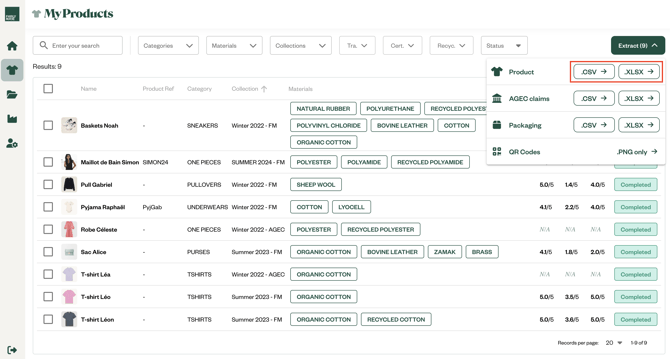
- You can download a CSV version by clicking on “.CSV” or an Excel version by clicking on “.XLSX”
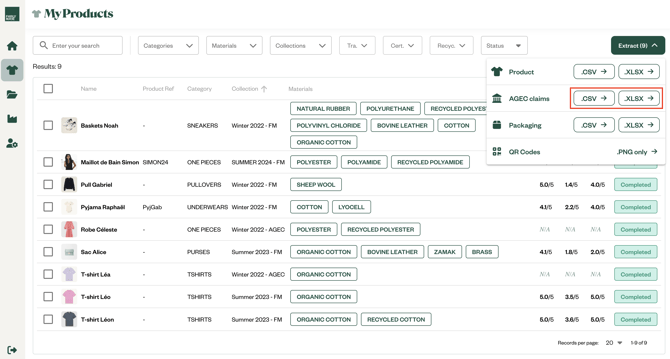
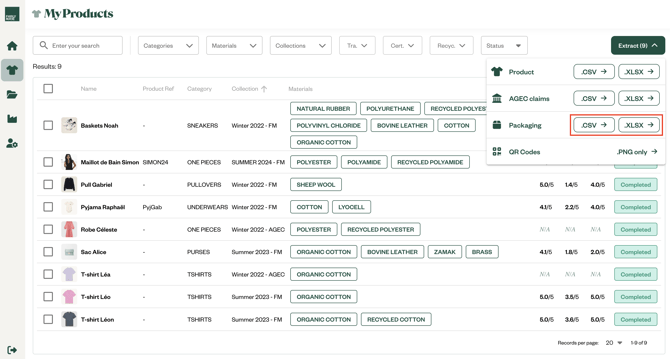
- 3 different types of extracts are available:
- Product: on this extract, there is one row per product
- AGEC claims: on this extract, there is one row per component of each product
- Packaging: on this extract, there is one row per packaging and per product
- On each extract, you can find detailed information about its content from the “Summary” tab of the Excel version
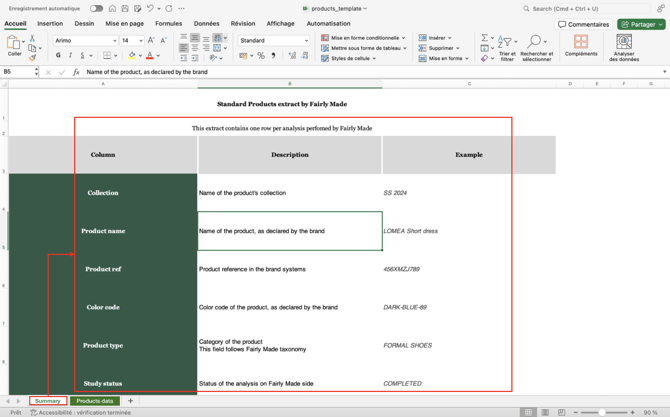
- These 3 extracts are also available from a collection page or on a supplier page:
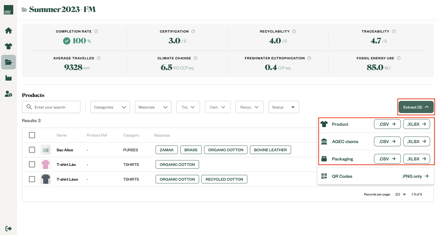
Extracts on a collection page
Extracts on a supplier page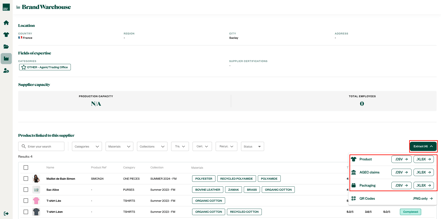
🔎 Refine the downloads performed
- By default, the extracts will be performed for all your products.
- In order to refine the products that will appear on the extract, you can:
- Use the search bar
- Use filters
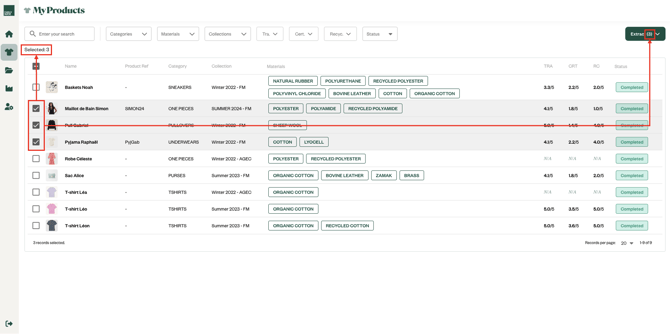
- Manually selects the products
- The number of results matching the restrictions you defined is displayed into brackets on the “Extract” button.
Suppliers extracts
Download standard extract
- From “My Suppliers” page, you can download the information of the suppliers by clicking on the “Extract” button.
- You can download a CSV version by clicking on “.CSV” or an Excel version by clicking on “.XLSX”

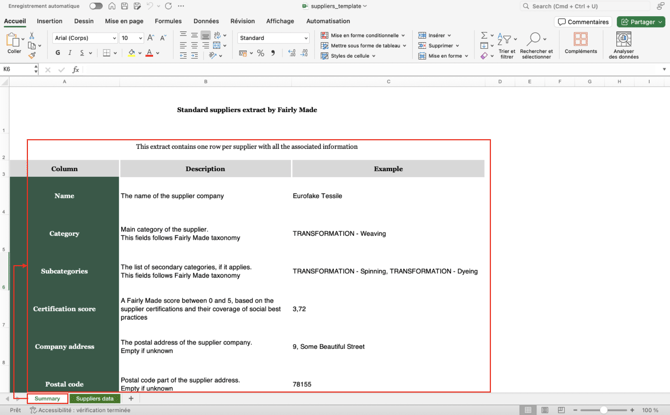
- On this extract, you can find detailed information about its content from the “Summary” tab of the Excel version
🔎 Refine the extract performed
- By default, the extract will be performed for all your suppliers.
- In order to refine the suppliers that will appear on the extract, you can:
- Use the search bar
- Use filters
- Manually selects the suppliers
- The number of results matching the restrictions you defined is displayed into brackets on the “Extract” button.