
How to Add and Manage Your Certifications
We have introduced a My Documents page to centralize all your scope certifications. Your previous certifications have already been uploaded.
Documents must be valid and in your company's name only. Please do not attach supplier certifications from your own account.
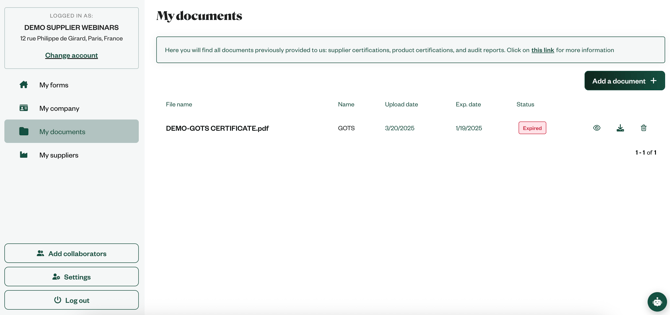
📌 Adding a Certification
You can add a certification from My Documents or My Company page:
-
Click on “Add a Certification”.
-
Upload your document.
-
Fill in the required details.
-
Your certification is now saved in your list.
📂 Preview, Download, and Delete
Once your certification is uploaded, you can:
-
Delete it by clicking on the bin icon.
-
Preview it by clicking on the eye icon.
-
Download it by clicking on the arrow icon.
⏳ Expiring Soon or Expired!
-
If a certification is about to expire, it will display an “Expires Soon” tag.
-
If it has expired, you will see an “Expired” tag.
-
In both cases, remove the outdated document and upload a new one.
Keeping your certifications up to date ensures smooth compliance and uninterrupted access to the Supplier Interface.